


Introduction
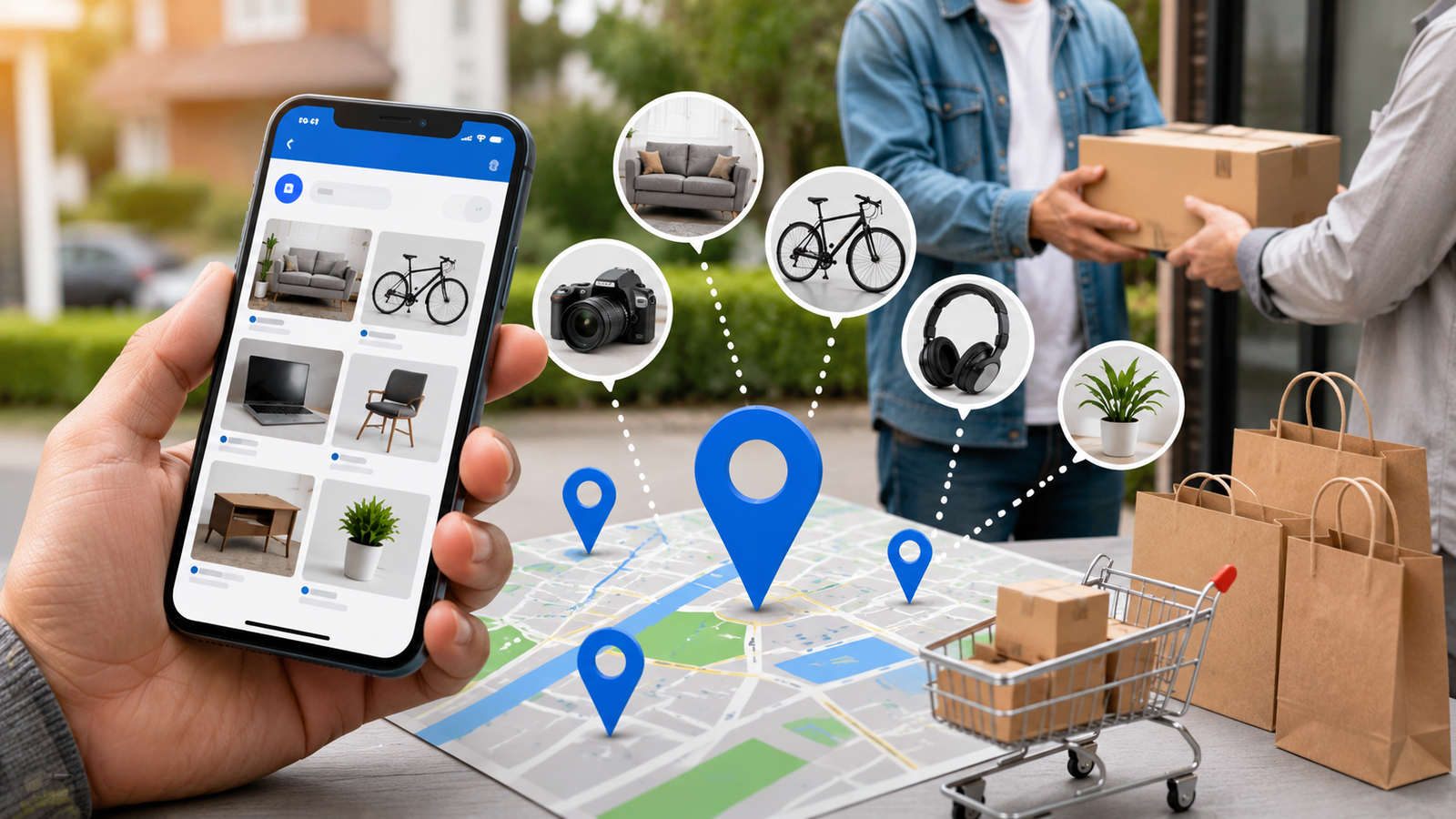
facebook marketplace local only is designed to connect buyers and sellers nearby, but it doesn’t always default to showing purely local results. If your feed is cluttered with listings from far outside your area, adjusting a few simple settings can help you filter Marketplace down to items that are genuinely close to home.
This guide walks through exactly how to set facebook marketplace local only, on both mobile and desktop.
Why Facebook Marketplace Sometimes Shows Non-Local Listings
facebook marketplace local only uses a combination of your device’s location settings, your profile location, and your search activity to determine which listings to show you. If your location settings aren’t accurate, or if you haven’t adjusted your search radius, you may end up seeing listings from other cities, states, or even other countries.
Understanding how to manually set your location and filter by distance gives you much more control over what actually shows up in your feed.
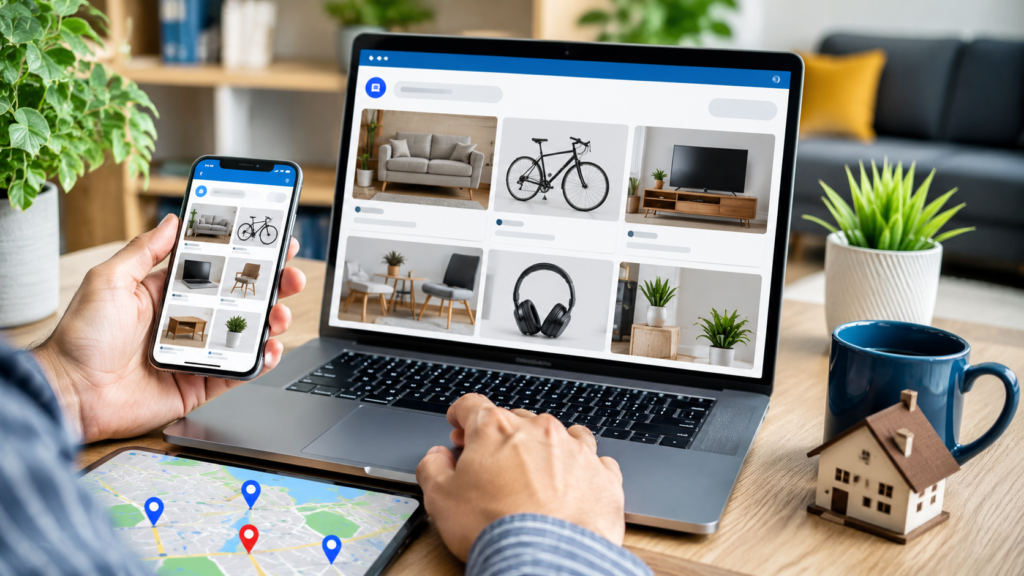
How to Set Facebook Marketplace to Local Only on Mobile
Step-by-Step Instructions
- Open the Facebook app and tap Marketplace
- Tap Categories, then select Local Listings
- Tap the map icon to open location settings
- Choose your preferred location and adjust the radius to your desired distance
- Tap Apply to save your changes
Filtering a Specific Search by Distance
If you’re searching for a specific item and want to prioritize nearby results:
- Type your search term into the Marketplace search bar
- Tap Filters, then select Sort By
- Choose Distance: Nearby First
- Tap See Items (Android) or See Listings (iPhone) to view your results
Mobile Steps Table
| Step | Action |
|---|---|
| 1 | Open Marketplace in the Facebook app |
| 2 | Go to Categories > Local Listings |
| 3 | Tap the map icon and set your location and radius |
| 4 | Apply changes to update your feed |
| 5 (optional) | Use Filters > Sort By > Distance: Nearby First for specific searches |
How to Set Facebook Marketplace to Local Only on Desktop
facebook marketplace local only desktop version follows a similar process, with a few interface differences.
- Go to Facebook.com and log into your account
- Click the three horizontal lines (menu icon) in the top-left corner and select Marketplace
- Under Today’s Picks, click Change Location
- Choose your location and set your preferred radius
- Click Apply to save
If you’re searching for a specific item on desktop, use the Filters panel on the left side of the page and select Distance: Nearest First to sort results by proximity.
Troubleshooting: Location Not Updating Correctly
If Marketplace still isn’t showing accurate local results after adjusting your settings, try the following:
- Manually enter your location by typing your city, neighborhood, or ZIP code directly into the location search box, rather than relying on automatic detection
- Refresh the Marketplace page after applying your new location settings
- Check your device’s location services, since Facebook may rely on this for automatic location detection on mobile
- Scroll to “See All” on listings, since Facebook sometimes continues showing cached results from a previous location as you scroll
Troubleshooting Table
| Issue | Fix |
|---|---|
| Location still inaccurate | Manually type in your city or ZIP code |
| Old listings still appearing | Refresh the page or app after changing settings |
| Location not updating on mobile | Check that device location services are enabled |
| Feed shows outdated results | Tap “See All” to reload listings for your new location |
Tips for a Better facebook marketplace local only Experience
- Set a smaller radius if you want to prioritize very close, easy-to-arrange local pickups
- Use the Sort by Distance filter whenever searching for a specific item, rather than relying only on your default feed
- Re-check your location settings periodically, especially after traveling, since Facebook may adjust your default location based on recent activity
- Combine location filters with category filters to narrow results even further when searching for specific items
Why Setting Marketplace to Local Only Matters
Several practical benefits come from properly filtering facebook marketplace local only listings:
- Easier, faster transactions, since local pickups avoid shipping delays and costs
- Reduced risk, as local, in-person exchanges are generally easier to verify than long-distance deals
- More relevant results, cutting down on clutter from listings outside your area
- Better deal-hunting, since sorting by distance helps you spot genuinely nearby bargains faster
FAQs About Facebook Marketplace Local Only Settings
1. How do I make facebook marketplace local only show local items? Go to Marketplace, select Local Listings under Categories, then set your location and preferred radius before applying the changes.
2. Can I filter facebook marketplace local only search results by distance? Yes, after searching for an item, use the Filters option and select Sort By > Distance: Nearby First (or Nearest First on desktop).
3. Why is facebook marketplace local only showing listings from far away? This usually happens when your location settings aren’t set accurately, or when your search radius is set too wide. Adjusting your location and radius manually usually fixes this.
4. Does facebook marketplace local only work the same way on desktop and mobile? The overall process is similar, though the exact menu locations differ slightly, on desktop, you’ll use the Change Location option under Today’s Picks, while mobile uses the Local Listings section under Categories.
5. Why do old listings still show up after I change my location? Facebook can sometimes display cached results from your previous location. Refreshing the page or tapping “See All” typically resolves this.
Conclusion
Setting facebook marketplace local only to listings takes just a few simple steps, whether you’re using the mobile app or browsing on desktop. By adjusting your location, setting a search radius, and using the distance sort filter, you can cut through clutter and focus on genuinely nearby deals.
With your Marketplace settings properly configured, buying and selling locally becomes a much smoother, faster experience.
